Ask — Quick Start
Put a question box on your page.
Put Miso's question box on your page. A reader asks a question in their own words, and gets an answer built from your content, with citations.
This takes about ten minutes. At the end you have a working page.
Before you start
Get your publishable API key. Copy it from Overview in the Miso Dashboard. The SDK runs in the browser, so it takes the publishable key, never the secret key. See Authentication.
Put your content in Miso. Ask works from your catalog. Upload your content first — see Integrating Your Data — and confirm the result in Dashboard ▸ Data Sets ▸ Catalog.
No content of your own yet? Load a real one in a few minutes. Example: Wikinews parses a free public archive of about 20,900 news articles and sends it to Miso, so you have something to ask questions about.
1. Install the SDK
As a node module
In your project directory, run:
npm install --save @miso.ai/client-sdk
Then import MisoClient from the SDK:
import MisoClient from "@miso.ai/client-sdk";
Using a script tag
<script async src="https://cdn.jsdelivr.net/npm/@miso.ai/client-sdk@latest/dist/umd/miso.min.js"></script>
The script tag loads the SDK asynchronously, so your code must wait for it. Use
the misocmd queue, which runs your function as soon as the SDK is ready:
const misocmd = window.misocmd || (window.misocmd = []);
misocmd.push(() => {
  const MisoClient = window.MisoClient;
  // Your code goes here.
});
2. Add the container
Put this where the question box belongs:
<div id="miso-ask-combo" class="miso-ask-combo"></div>
3. Start the workflow
const misocmd = window.misocmd || (window.misocmd = []);
misocmd.push(async () => {
  const client = new MisoClient("YOUR_PUBLISHABLE_API_KEY");
  const workflow = client.ui.ask;

  await client.ui.ready;                    // styles are loaded

  const defaults = MisoClient.ui.defaults.ask;
  const root = document.querySelector("#miso-ask-combo");
  root.innerHTML = defaults.templates.root();

  workflow.autoQuery();                     // read ?q= from the URL
});
autoQuery() reads the q parameter from the page URL and asks that question.
Call workflow.query('…') instead to ask one yourself.
The complete page
<!DOCTYPE html>
<html lang="en">
<head>
  <meta charset="UTF-8" />
  <title>Miso Ask</title>
  <script async src="https://cdn.jsdelivr.net/npm/@miso.ai/client-sdk@latest/dist/umd/miso.min.js"></script>
</head>
<body>
  <div id="miso-ask-combo" class="miso-ask-combo"></div>

  <script>
    const misocmd = window.misocmd || (window.misocmd = []);
    misocmd.push(async () => {
      const client = new MisoClient("YOUR_PUBLISHABLE_API_KEY");
      const workflow = client.ui.ask;

      await client.ui.ready;

      const defaults = MisoClient.ui.defaults.ask;
      const root = document.querySelector("#miso-ask-combo");
      root.innerHTML = defaults.templates.root();

      workflow.autoQuery();
    });
  </script>
</body>
</html>
Check it works
Save the page, open it in a browser, and add ?q=media to the URL. You get an
answer from your own content, with follow-up questions and the articles it
used.
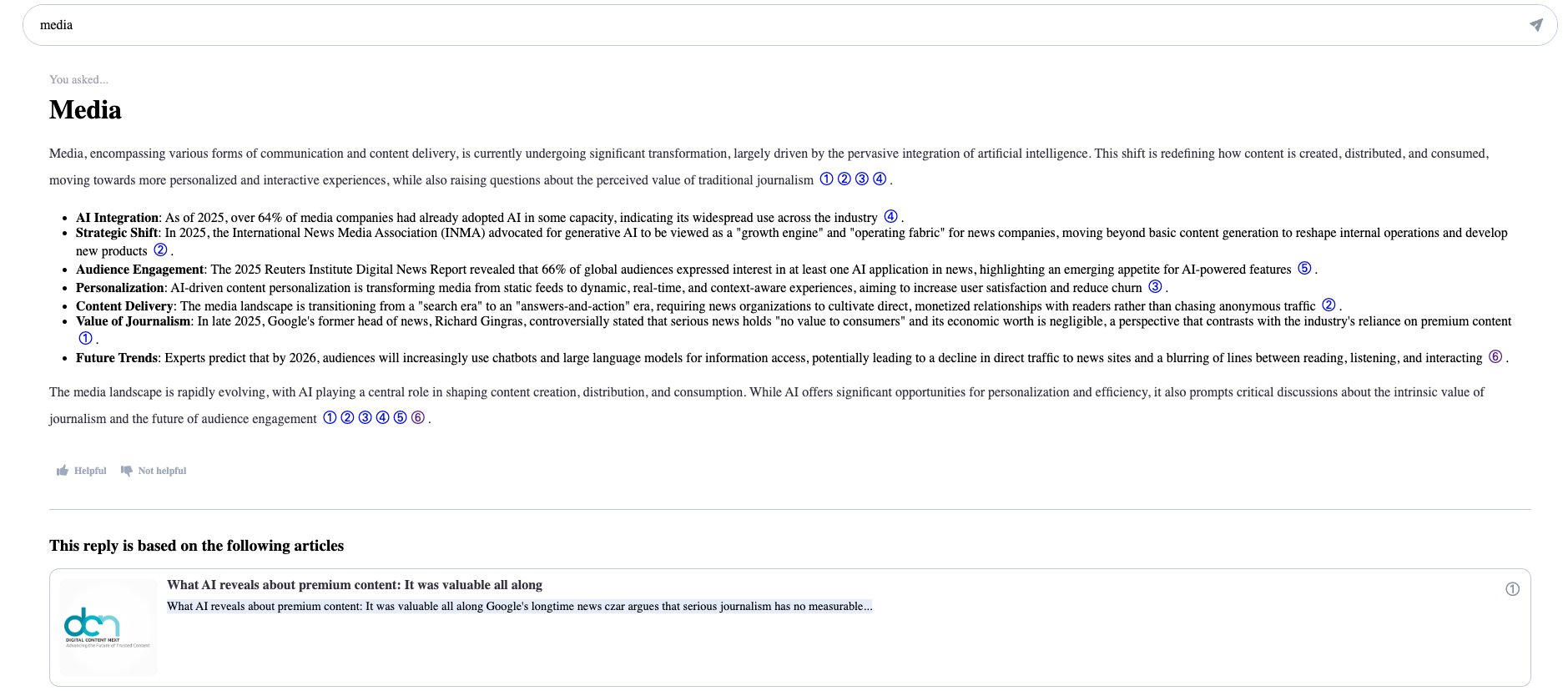
If nothing appears, check these three things first:
| Symptom | Cause |
|---|---|
| The box never renders | The key is the secret key, or it is wrong. Use the publishable key. |
| The answer refuses every question | The catalog is empty, or the upload is still running. |
| The page is blank until you reload | Your code ran before the SDK loaded. Use the misocmd queue. |
Next
- API Configuration — which articles the answers can cite.
- Citation Links — the class, the attributes and the tooltip of each citation.
- Explore — Quick Start — related questions on an article page.
- Hybrid Search — Quick Start — search results and an answer together.
- Template helpers and elements — change the layout and the markup.
- Answer Response Fields — the API behind the workflow, for your own front end.